Office and Lobby Digital Signage
Welcome visitors, keep staff informed and show what's happening today, on every lobby and office screen. Clinicast gives your team one dashboard for every display, with roles and two-step sign-in built in.
Reach the people who don't read every email
Internal news gets lost in inboxes and on bulletin boards. Screens in the lobby, break room and hallways put announcements where people actually look.
Clinicast keeps it simple for whoever runs the screens, and gives IT the controls it expects: roles, two-step sign-in, an audit trail and Players that update themselves.
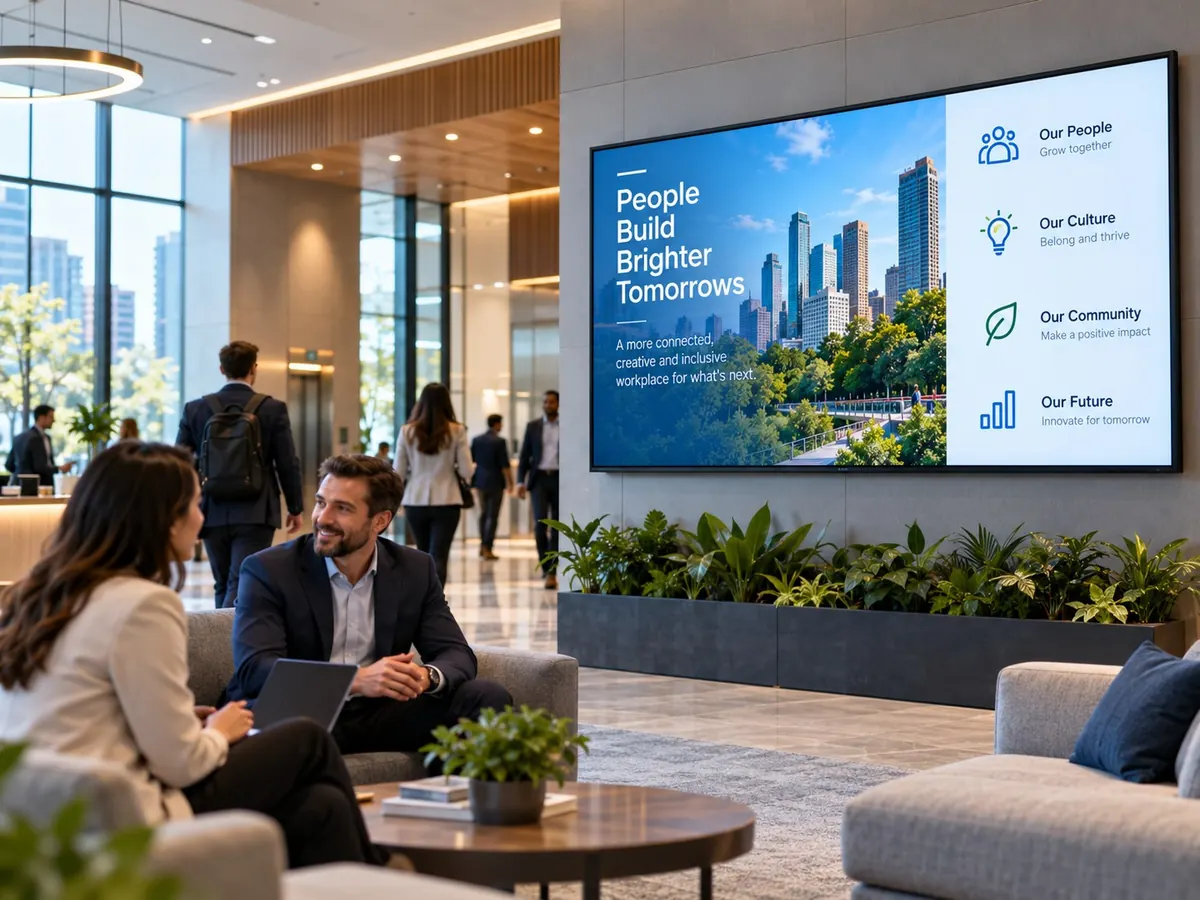
What offices show on their screens
Visitor welcomes
Greet guests and clients by name in the lobby.
Company announcements
News, town halls and policy reminders.
Today's events
Meetings, training and events on a calendar slide.
Recognition
Work anniversaries, milestones and shout-outs.
Weather
Live local weather with forecast and air quality.
Building notices
Elevator outages, parking changes and closures.
Built for offices and the IT teams behind them
Calendar slides
Show events as a month, list, week or today view, with a spotlight on today's event.
Ready-made office slides
Welcomes, announcements and reminders, filled in with your name and colours. No AI credits used.
AI design from a description
Clinicast Studio creates on-brand slides from a plain-language request, using your Brand Kit logos and colours.
Multi-zone layouts
Split a screen into zones to show more than one thing at once.
Roles and permissions
Give people the right access with Content Manager, Viewer and Location Admin roles.
Two-step sign-in
Protect admin accounts with two-step sign-in and sign-in attempt limits.
Network-friendly Players
Players use outbound HTTPS only, with no open ports, VPN or public IP needed, and update themselves.
Multiple offices
Manage several locations from one place, with head-office content and local admins.
Untagged features are in every plan. See all features
Get a lobby screen running in four steps
- 1
Choose your hardware
Use compatible hardware you already have (BYOD), or let us supply a Clinicast Player that arrives set up for your organization (Managed Player).
- 2
Plug it in
Connect the Player to your TV with HDMI, then plug in a network cable or join Wi-Fi by scanning the QR code on screen with your phone. No keyboard needed.
- 3
Approve it
The Player appears in your dashboard. An admin approves it and chooses which Screen it powers.
- 4
Publish
Add images, videos and slides to a playlist. The screen updates on its own, and keeps playing your latest content even if the internet drops.
Frequently asked questions
Does it work on our corporate network?
Clinicast Players need only outbound HTTPS, with no open ports, VPN or public IP. They work over a network cable or password-protected Wi-Fi (WPA2 or WPA3 personal). Guest Wi-Fi with a sign-in page and enterprise 802.1X networks aren't supported.
Can different teams manage their own screens?
Yes. Pro adds Content Manager, Viewer and Location Admin roles. Network adds custom roles, corporate administrators and multiple locations.
Can we show our events calendar?
Yes. Pro includes calendar slides with month, list, week and today views, plus a spotlight on today's event.
How is access secured?
Admins sign in with two-step sign-in, sign-in attempts are limited, administrative actions are recorded in an audit trail, and Players have their own secure identity and admin-approved enrollment.
Put Your Announcements Where People Look.
Book a demo to see Clinicast running your lobby and office screens.