Digital Menu Boards and Retail Signage
Run digital menu boards, daily specials, window displays and in-store promotions from one dashboard. Change prices and specials in seconds, and let promotions end on time without anyone touching the screen.
Stop reprinting menus and posters
Printed menus go out of date quickly, and specials change too often to reprint. Store screens are often unmanaged, and keeping them current across a chain is a chore.
With Clinicast, you update a menu board or promotion once and it appears on the right screens on its own, at the right time of day.
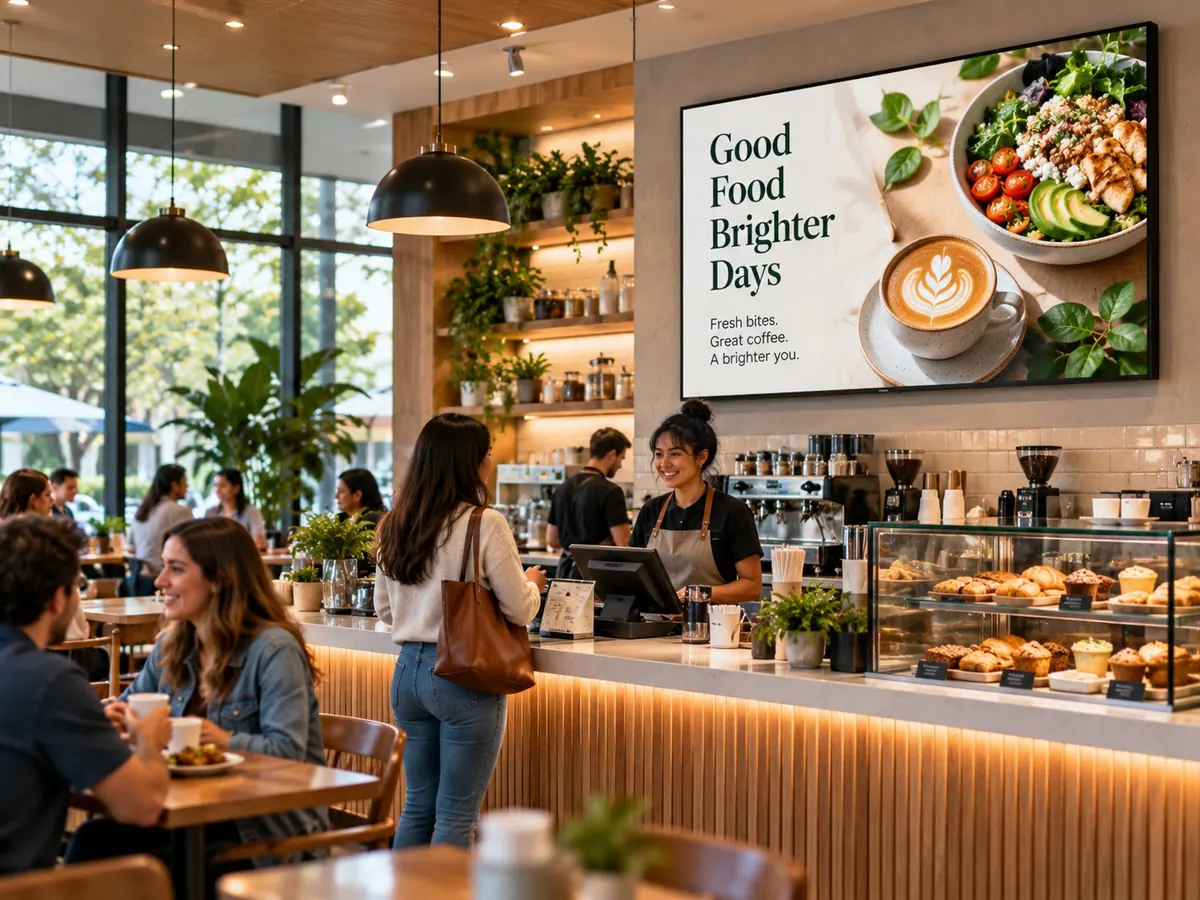
What shops and restaurants show on their screens
Menu boards
Full menus in landscape or portrait.
Daily specials
Breakfast, lunch and happy-hour specials by time of day.
Promotions
Sales, seasonal campaigns and limited-time offers.
Window displays
Attract people walking past your storefront.
QR codes
Link to ordering, reviews, loyalty or sign-up forms.
Product spotlights
New arrivals and featured products.
Built for menus, promotions and busy staff
Time-of-day schedules
Show breakfast in the morning and lunch at noon, automatically.
Recurring content
Repeat weekly specials and events without rescheduling them.
Promotions that end on time
Set an end date and the promotion comes down on its own, even if the screen is offline.
Design menus and promos in plain words
Clinicast Studio designs menu boards, window displays and promotions sized for each screen.
Your brand on every screen
Save logos and brand colours in a Brand Kit once, and add QR codes and shapes to any design.
Landscape and portrait
Designs fit wide TVs, tall menu boards, square and 4:3 screens.
Keeps playing offline
Each Player stores its content on its own drive, so an outage won't blank your menu board.
Multiple locations
Publish chain-wide promotions while each store manages its own screens.
Untagged features are in every plan. See all features
Get a menu board running in four steps
- 1
Choose your hardware
Use compatible hardware you already have (BYOD), or let us supply a Clinicast Player that arrives set up for your organization (Managed Player).
- 2
Plug it in
Connect the Player to your TV with HDMI, then plug in a network cable or join Wi-Fi by scanning the QR code on screen with your phone. No keyboard needed.
- 3
Approve it
The Player appears in your dashboard. An admin approves it and chooses which Screen it powers.
- 4
Publish
Add images, videos and slides to a playlist. The screen updates on its own, and keeps playing your latest content even if the internet drops.
Frequently asked questions
Can I change prices and specials myself?
Yes. Update content from any browser and the screen picks up the change on its own. Clinicast Studio (Pro) lets you edit any word on a design yourself, for free.
Can the menu change by time of day?
Yes. Pro includes time-of-day and recurring schedules, so breakfast, lunch and dinner menus can switch automatically.
Do portrait menu boards work?
Yes. Clinicast supports landscape, portrait, square and 4:3 screens, and Studio designs in each of those shapes.
What if our internet goes down during service?
The screen keeps showing your latest content from the Player's own drive, and scheduled promotions still stop on time.
We have several stores. Can head office control the screens?
Yes. The Network plan manages multiple locations from one place, with head-office content and local managers for each store.
Make Your Menu Boards Easy to Change.
Book a demo and we'll show you Clinicast running menus, specials and promotions.